Embul
Get stuff done correctly.
The to-do app for people who start strong and then forget. Tick things off with a satisfying pop, share errands with the family, and let Embul nag you (nicely).
Swipe to see more →
New in 1.2.1
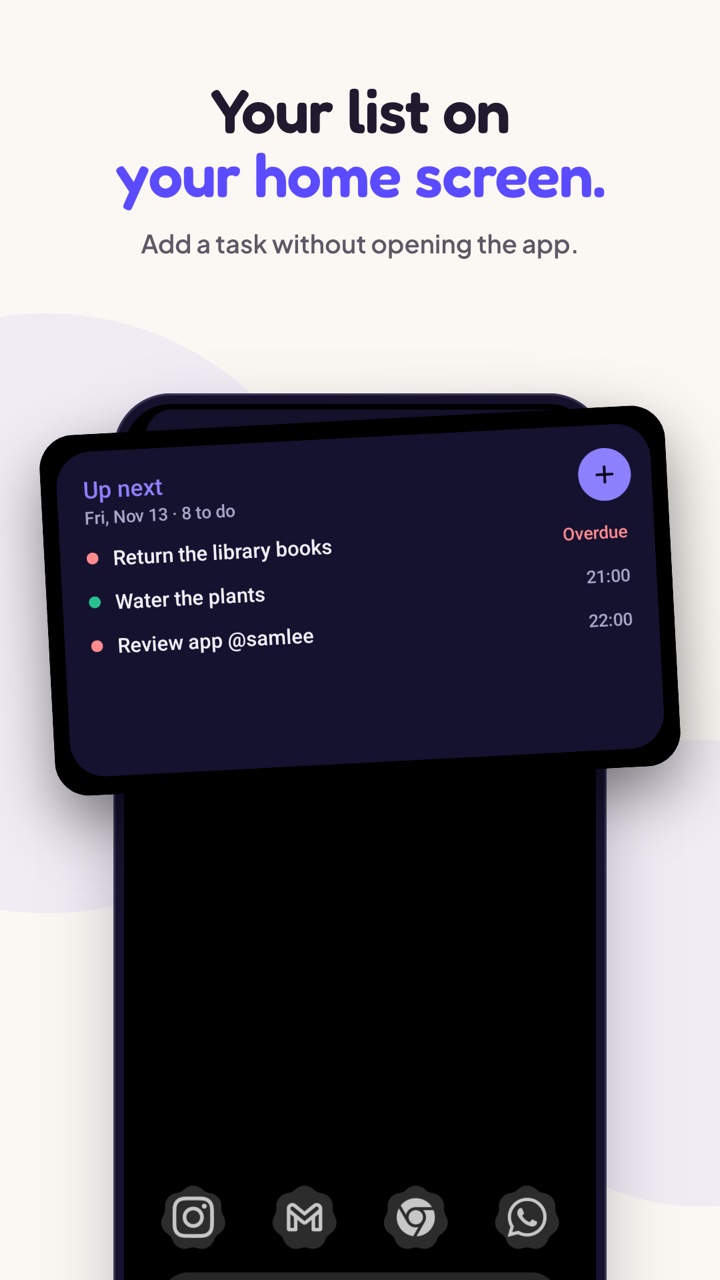
Your list, right on the home screen
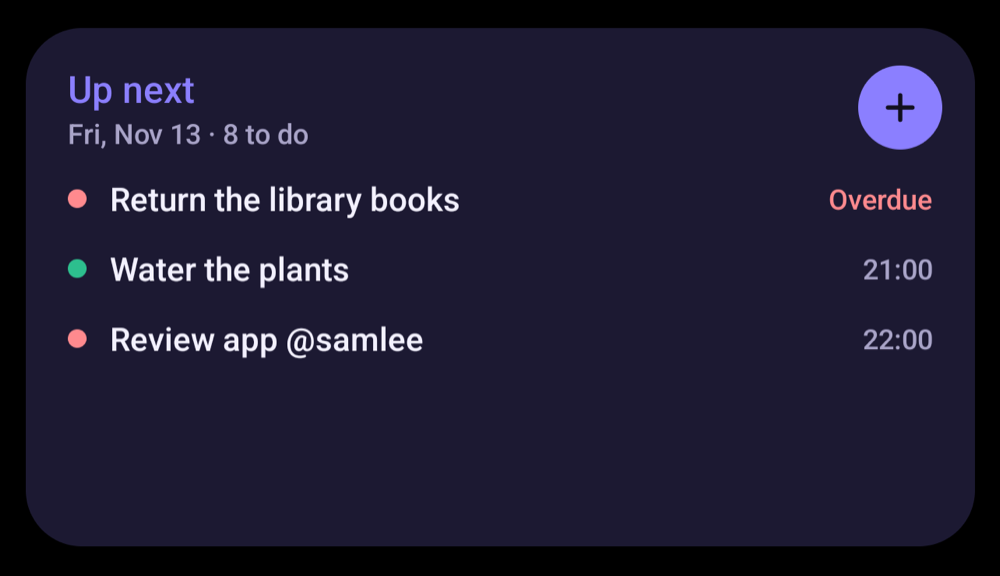
Home screen widget
See what's next without opening the app. Tap + to jump straight into a new task. On iPhone and Android.
Notes on every task
Links, sizes, the brand of soy sauce. The details live with the task.
Know when you're tagged
Get a notification the moment someone shares a task with you.
Always fresh
Come back to Embul and your list catches up on its own. No pull to refresh.
On iPad
Made for bigger screens too
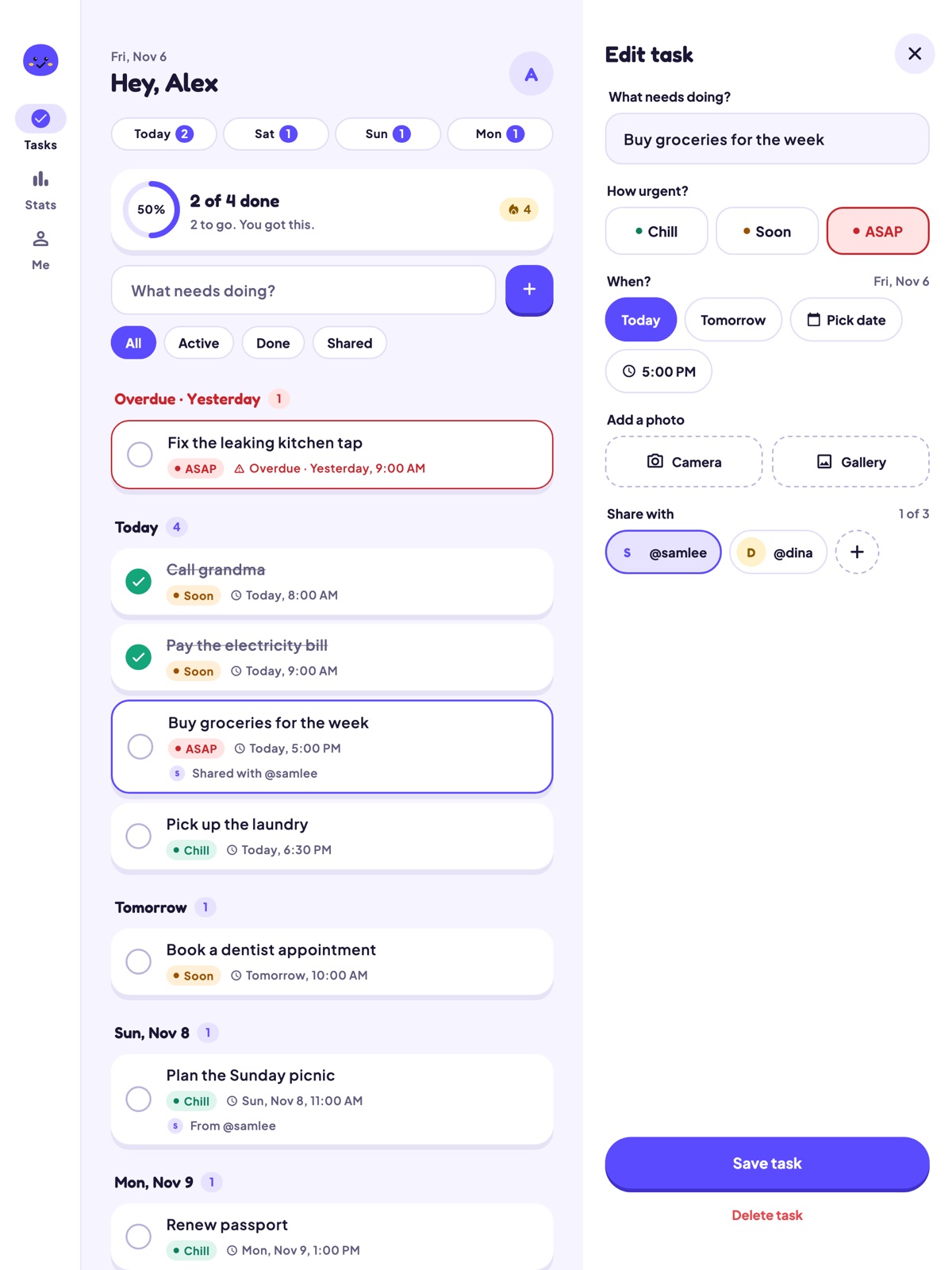
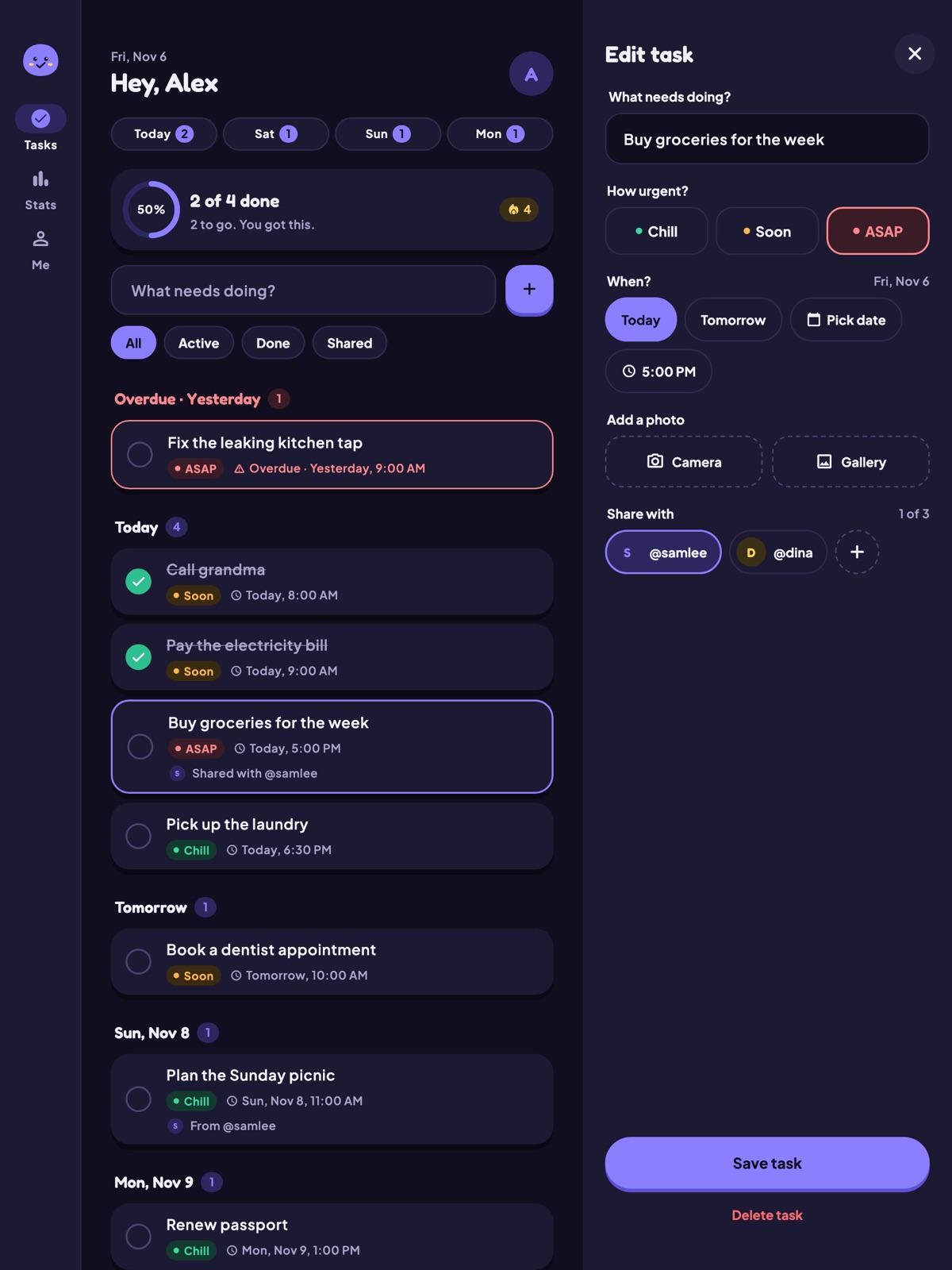
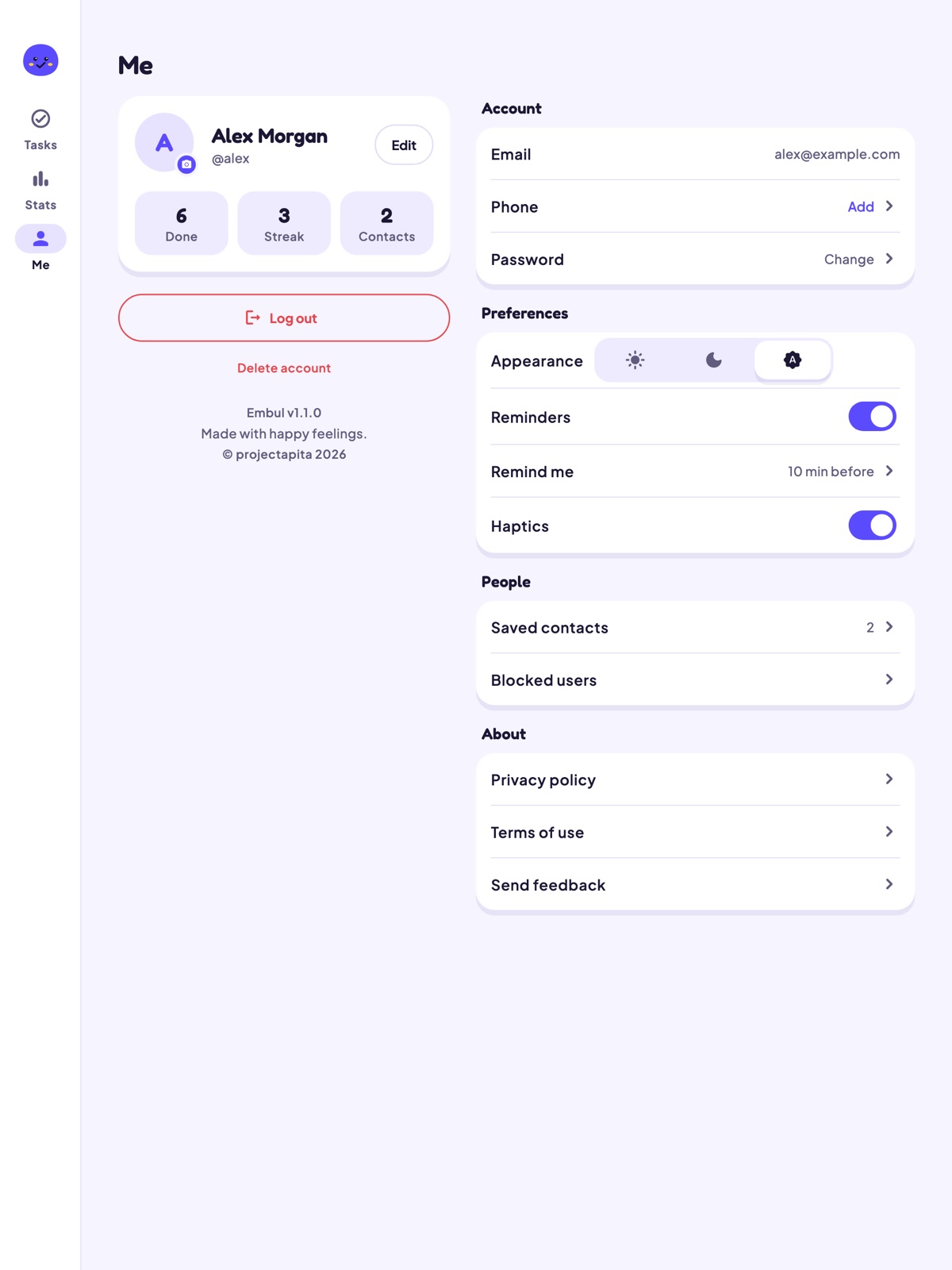
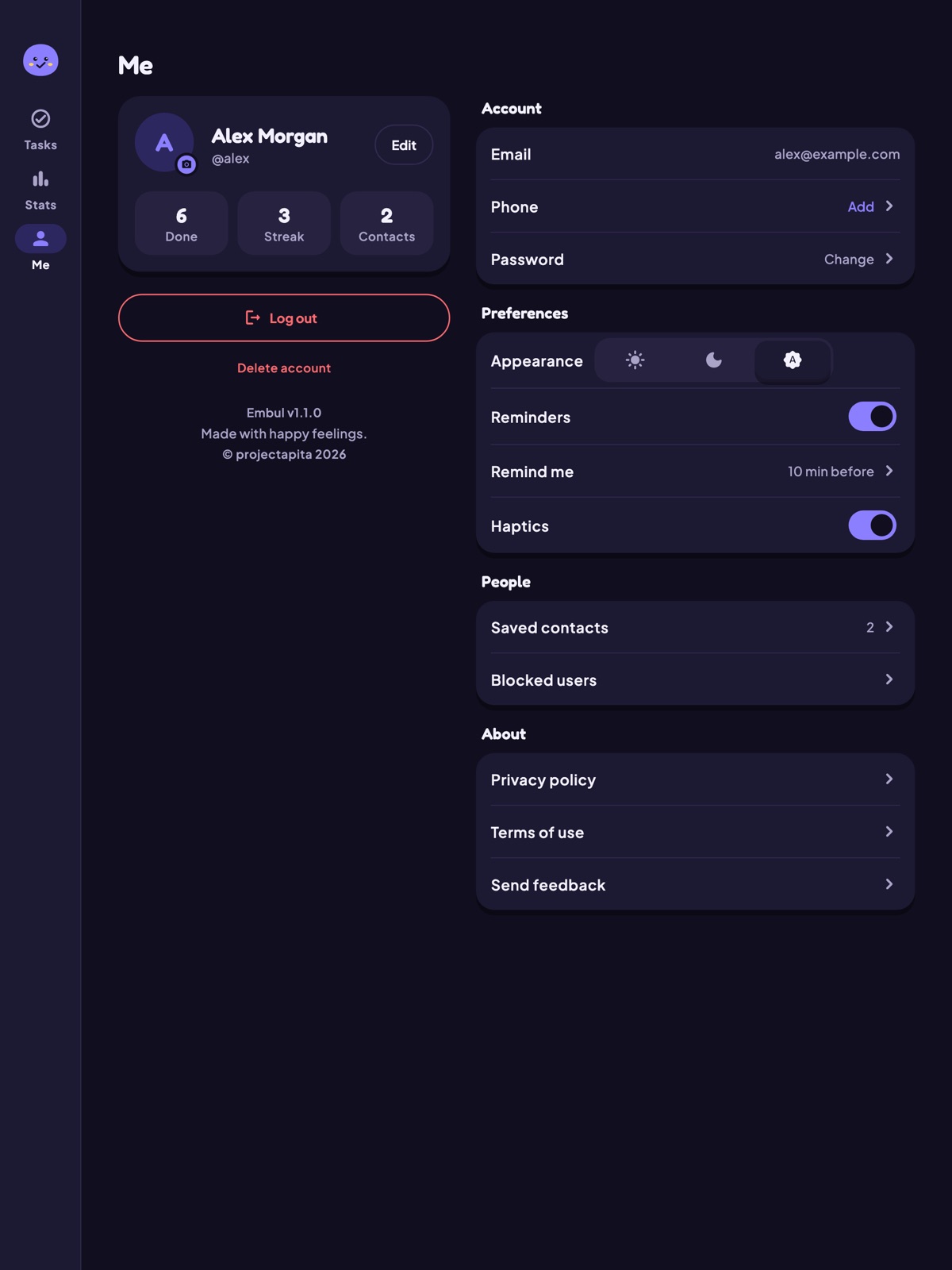
On iPad, Embul spreads out: a side rail for Tasks, Stats and Me, your list on the left and the task you're editing right next to it. Same app, same account, nothing extra to install.
How to use Embul
The quick version. Tap a topic to open it.
Add a task
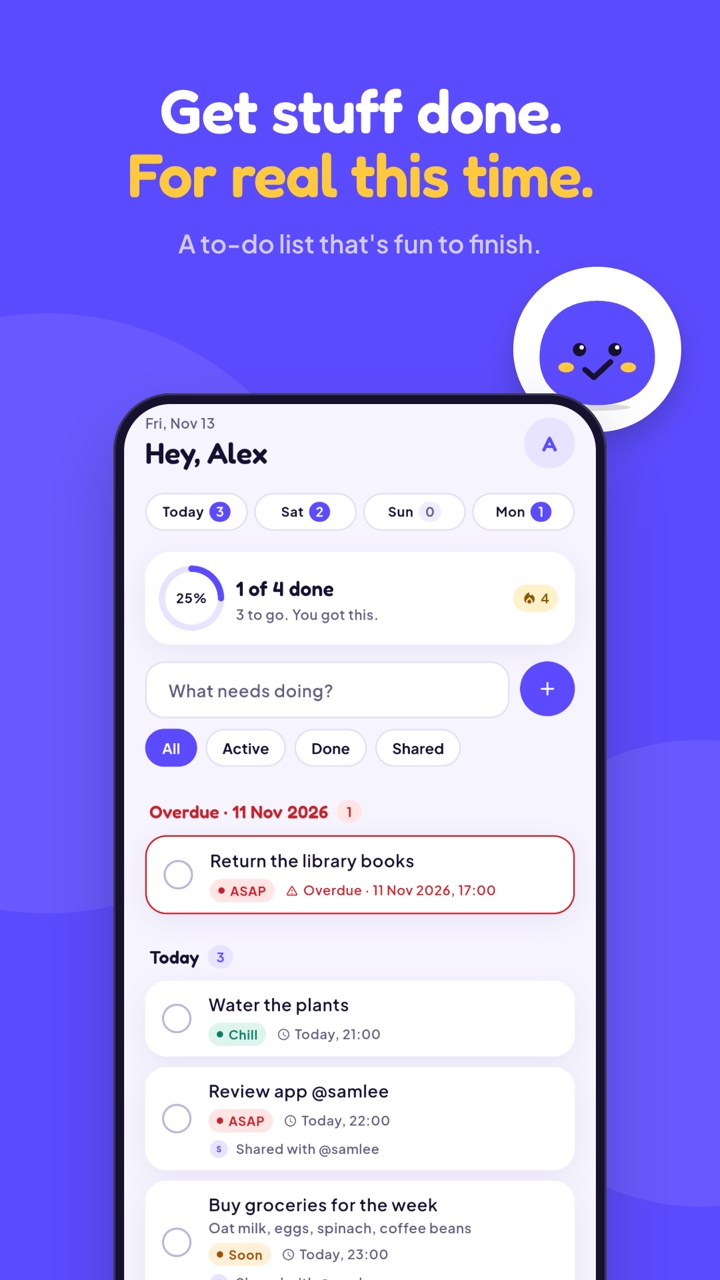
- Type in "What needs doing?" at the top of Tasks and hit enter. Done, it's on your list.
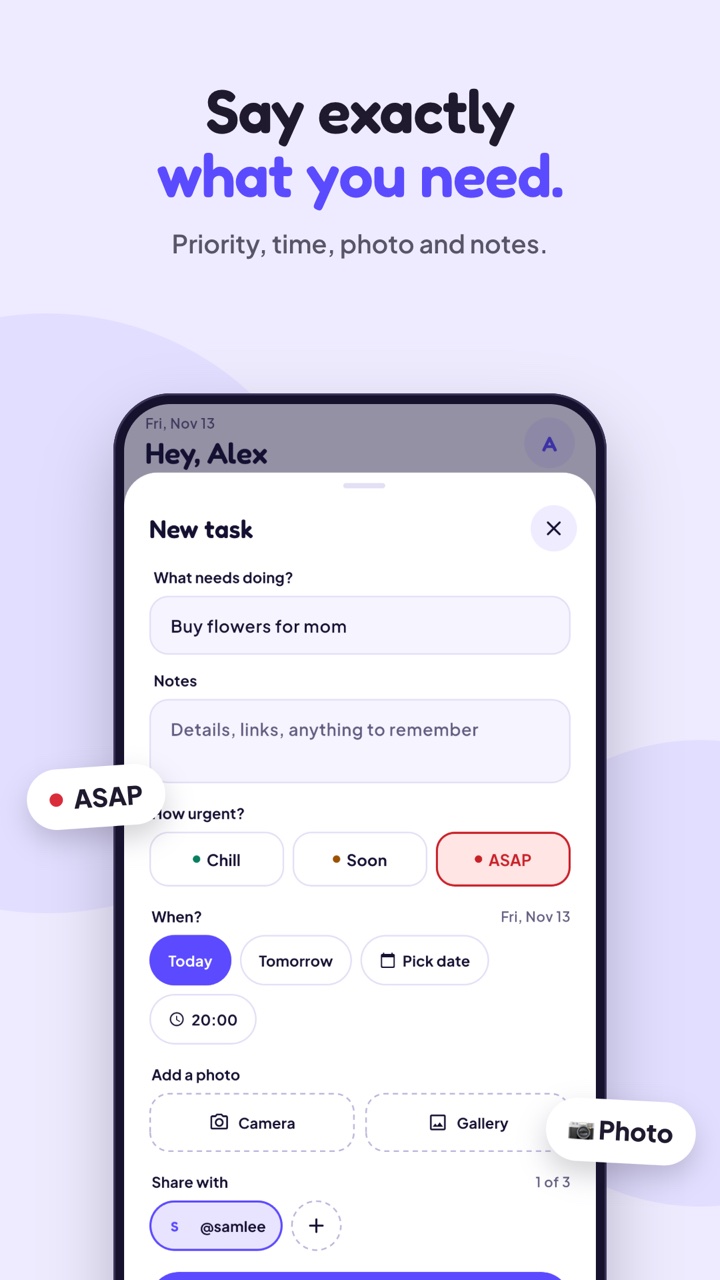
- Want more? Tap + to open the full task sheet: urgency, date, time, notes, photo and sharing.
- Need the details? Write them in Notes: links, sizes, who to call. Up to 2,000 characters.
Urgency, date and time
- Pick how urgent it is: Chill, Soon or ASAP.
- Under When?, choose Today, Tomorrow or Pick date, then tap the time to change it.
- Missed it? The task moves to Overdue in red, so it can't hide.
Tick off, edit or delete
- Tap the circle to tick a task off. Pop!
- Tap one of your tasks to edit it.
- Swipe it left to delete (there's Undo), or use Delete task inside the editor.
Find things fast
- Your list is grouped by day: Overdue, Today, Tomorrow and the days after.
- In All, Shared and Done, finished tasks sit below, grouped by the day you finished them, newest first.
- The pills at the top show how many tasks are on Today and the next 3 days. Tap one to jump there.
- Use the filters All, Active, Done and Shared to narrow it down.
Add a photo
- In the task sheet, under Add a photo, tap Camera or Gallery.
- Tap the photo on a task to see it full size. Handy for shopping lists and receipts.
Share a task with someone
- Both of you need an Embul account. Your @username is set when you sign up and can be changed in Me.
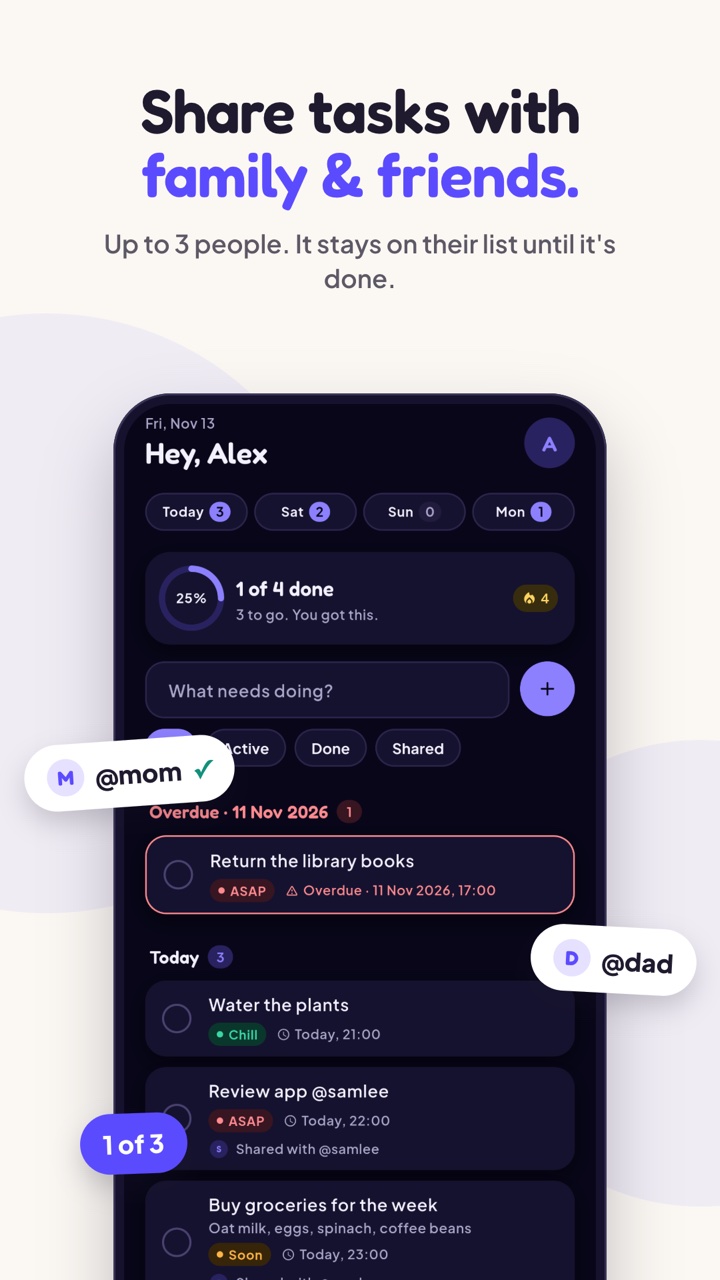
- In the task sheet, under Share with, tap + and type their @username. Up to 3 people per task.
- They'll see it on their list with "From @you", and they can tick it off too.
- If they allowed notifications, they get a ping the moment you share.
- People you share with land in Saved contacts (in Me) so next time it's one tap.
Got a task you didn't want?
- Tap a task someone shared with you to remove it from your list, block the sender, or report it.
- Changed your mind? Unblock people in Me → Blocked users.
Reminders
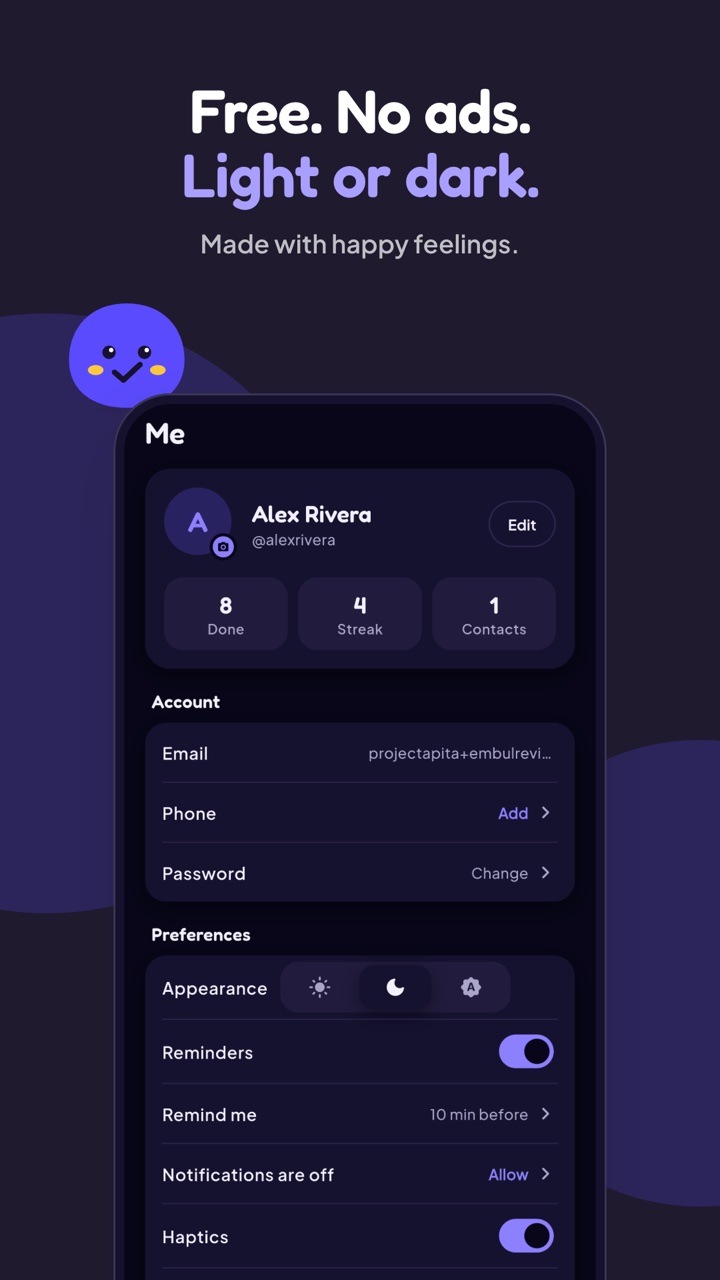
- Turn on Reminders in Me and allow notifications when your phone asks.
- Under Remind me, choose how early: 60, 45, 30, 15 or 10 minutes before a task is due.
- On Android, if reminders arrive late, allow alarms and reminders for Embul in your phone settings.
Home screen widget
- Long-press your home screen, tap Widgets (on iPhone, Edit then Add Widget) and pick Embul.
- It shows your next active tasks. Tap + to add a new one, or tap anywhere else to open Embul.
- It updates whenever you use the app. Signed out? It asks you to sign in.
Streaks and stats
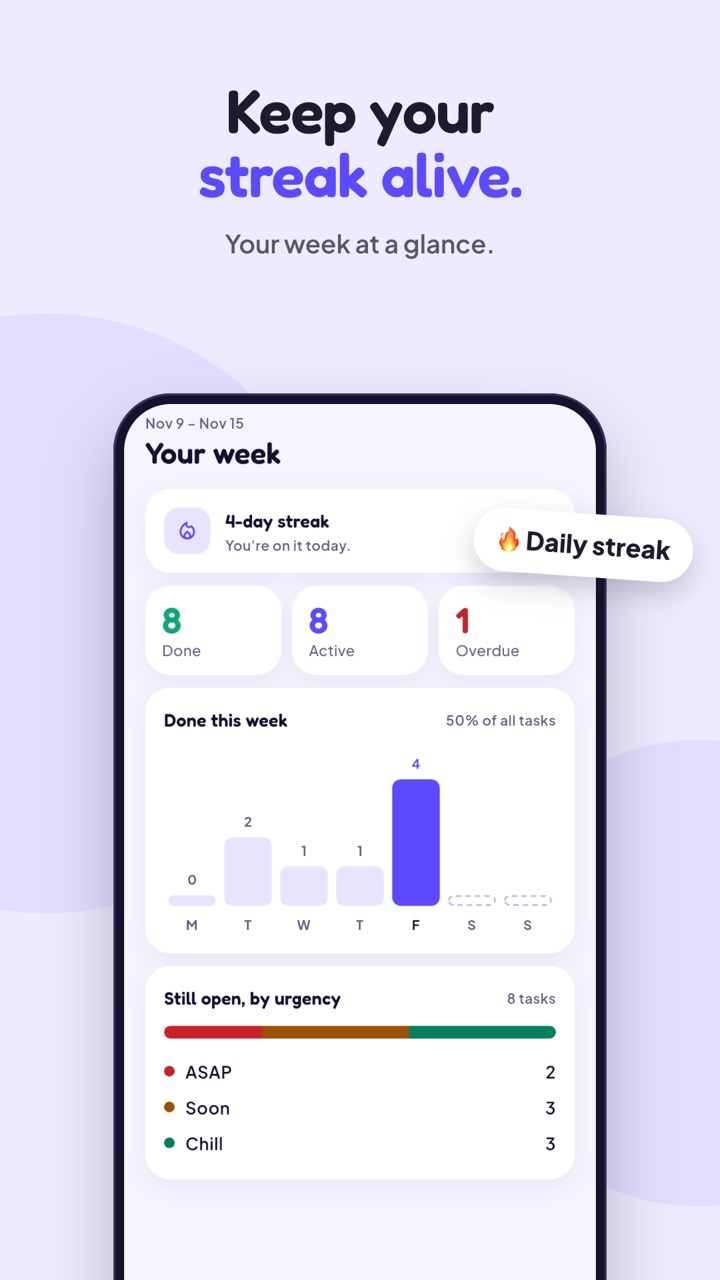
- Finish at least one task a day to keep your streak (the flame) going.
- The Stats tab shows your streak, your best streak, tasks done this week and what's still open by urgency.
Light, dark or auto
- In Me → Appearance, pick light, dark, or auto to follow your phone.
Delete your account
- In Me → Delete account. This removes your account, tasks and photos for good.
- Can't open the app? See the delete account page linked below.
Stuck, or found a bug? Tap Send feedback in Me, or email [email protected].